Search
Preview items from search results
You can launch a preview of one or more items in the search results using a sample browser-based test driver (Exam Preview). This shows how the items will appear to candidates during exam delivery.
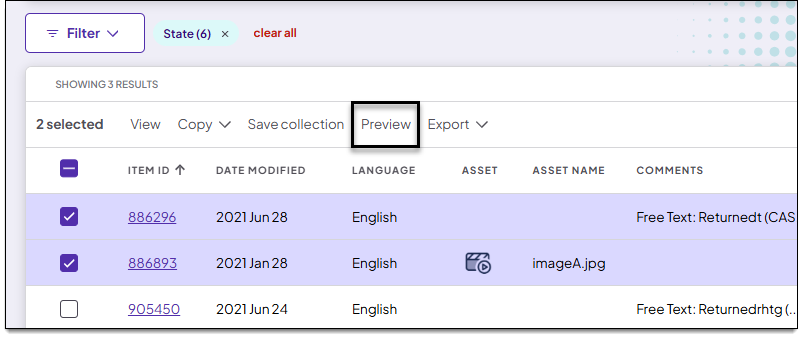
- Select the desired item or items (or click the top-left checkbox to select all items).
 You can select up to 1000 items.
- Click Preview in the search results toolbar.
- The preview will launch in a new tab or window in your browser, unless the preview takes more than 30 seconds to load (see next step).
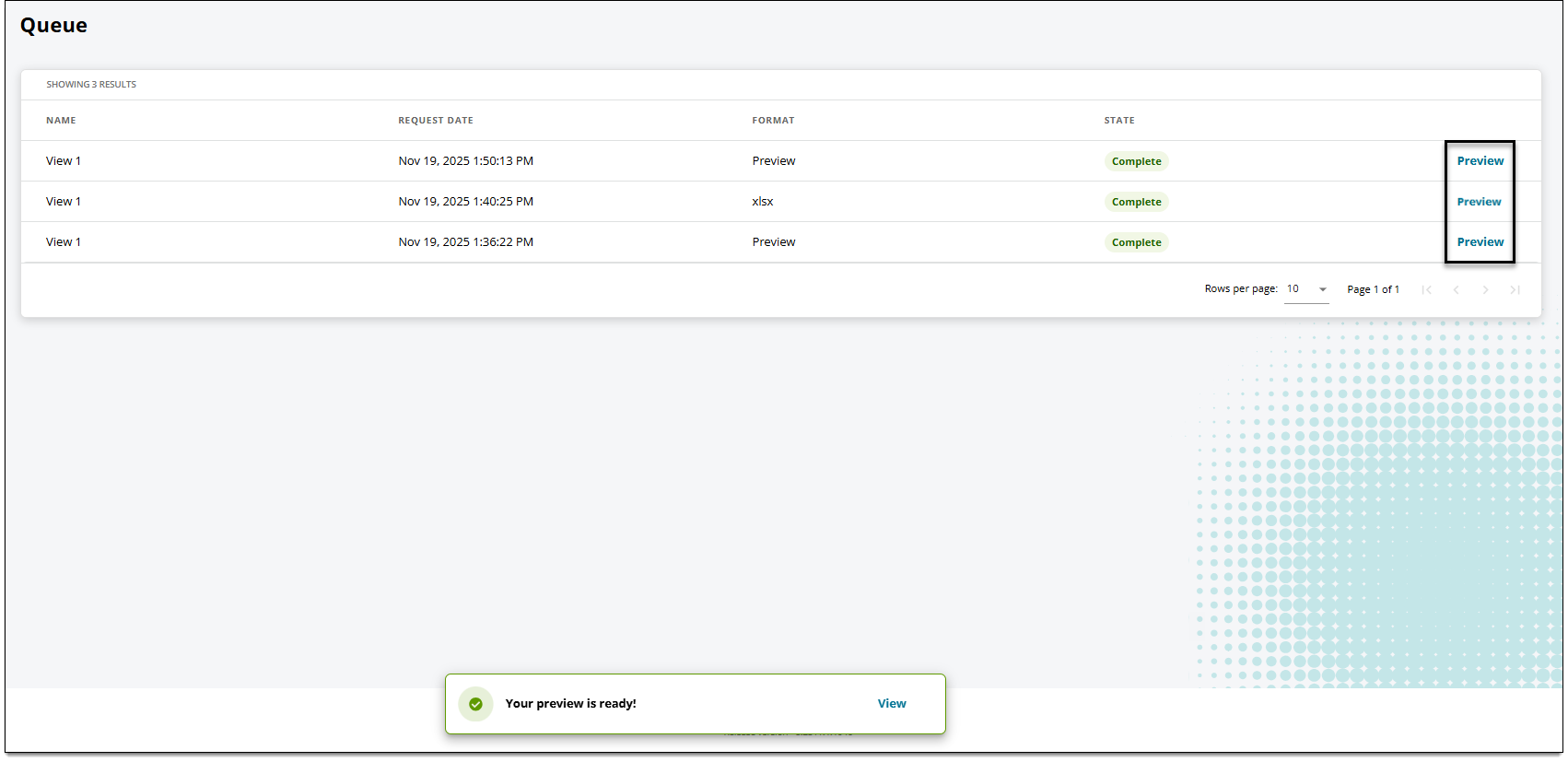
- If your selection takes more than 30 seconds to load, the preview is sent to the Queue page.
- You can navigate away from this page while the preview generates, but do not close the Queue page or log out of ExamDeveloper until you have accessed the preview. A notification will be shown on the ExamDeveloper page you are viewing when the file is ready.
- On the Queue page, click Preview. (The status will show as "Complete" when the preview is ready.)
 Once you view a preview you cannot access it again.